10/24/2026 M. Washington (Admin)
Deploy Blazor Data Orchestrator Into Your Own Azure Subscription With BlazorData.net
See the video at: Walk-Thru: BlazorData.net, Deploy Blazor Data Orchestrator Into Your Own Azure Subscription
Blazor Data Orchestrator is an open-source job orchestration platform built on .NET Aspire and Blazor Server. Until now, getting it into Azure meant cloning the repository, installing the Azure Developer CLI, the .NET SDK and Docker, and running azd up.
BlazorData.net replaces all of that. It installs and updates Blazor Data Orchestrator in your own Azure subscription, from your browser, with nothing to install on your machine: no azd, no Aspire CLI and no Docker.
How It Works
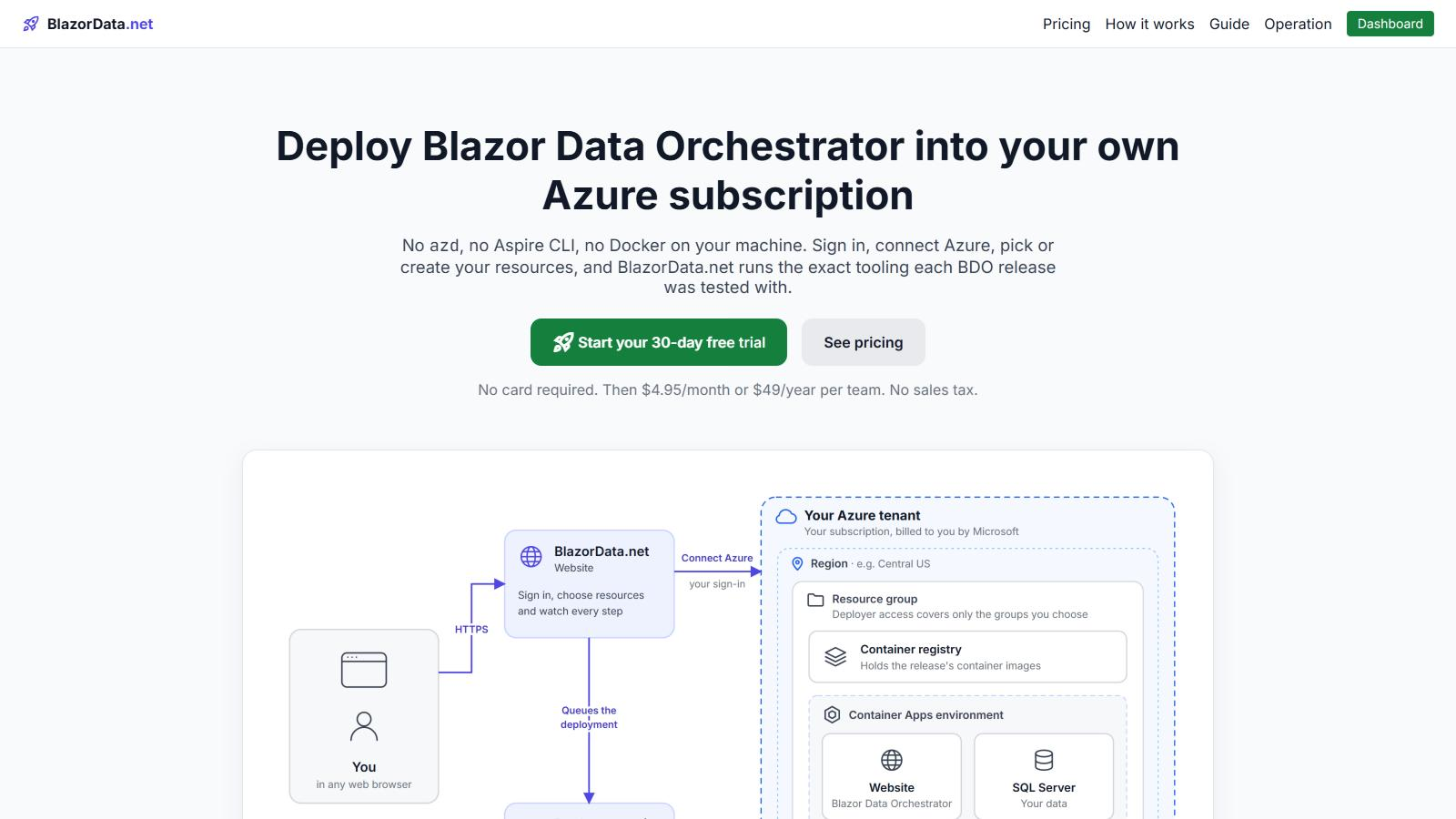
You sign in, connect Azure and choose your resources. BlazorData.net queues the deployment, and its deployer service pulls the release from GitHub and runs the exact azd and Aspire tooling that release was built and tested with. Blazor Data Orchestrator and your data always run in your own Azure tenant, billed to you by Microsoft.
Sign In And Connect Azure
Sign in with Google or Microsoft. Your first sign-in creates your account and starts a 30-day free trial; no card is required.
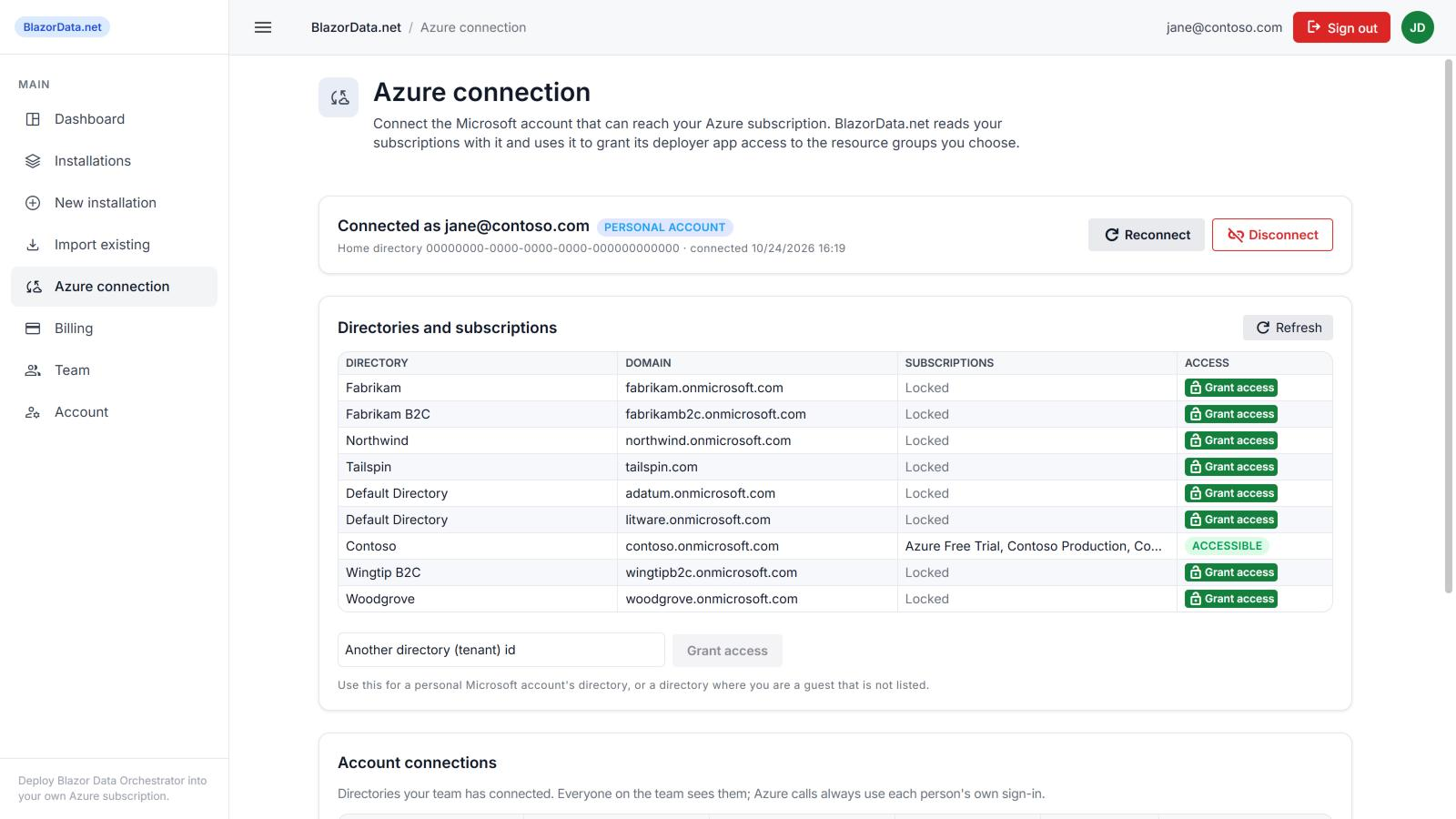
On Azure connection, sign in with the Microsoft account that can reach your subscription. You see every directory and subscription it can access.
Create An Installation
Click New installation. The wizard has 12 steps and saves your choices after each one, so you can close it and continue later.
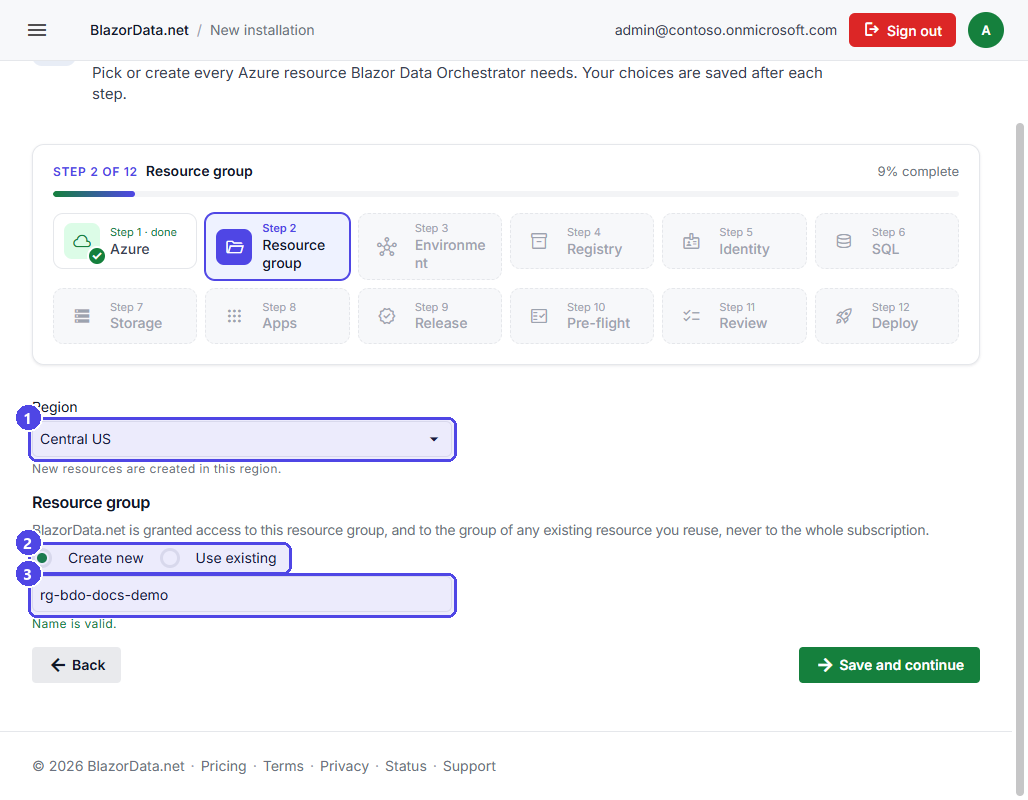
Pick the subscription, region and resource group. The deployer only gets access to the resource groups you choose, never to the whole subscription. Then, for each resource Blazor Data Orchestrator needs (the Container Apps environment, container registry, managed identity, Azure SQL, storage and the three container apps), choose Create new or Use existing.
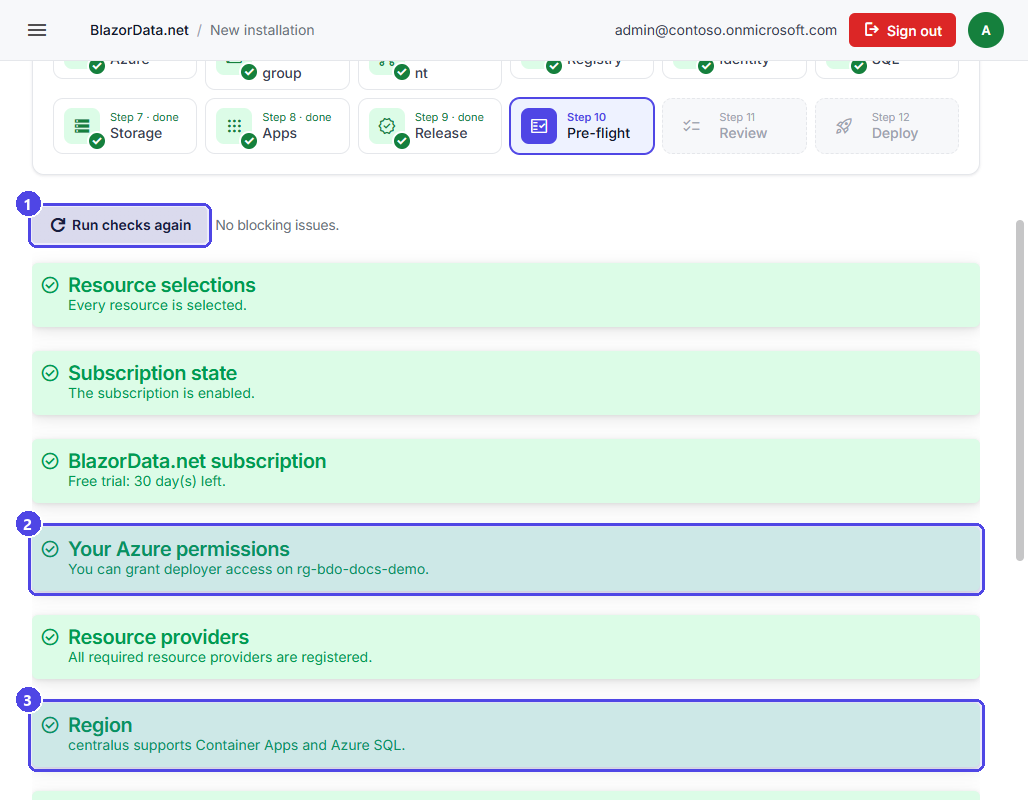
Pick an approved release, and pre-flight checks everything that could make the deployment fail before any Azure resource is created: your permissions, resource providers, region availability, names and quotas.
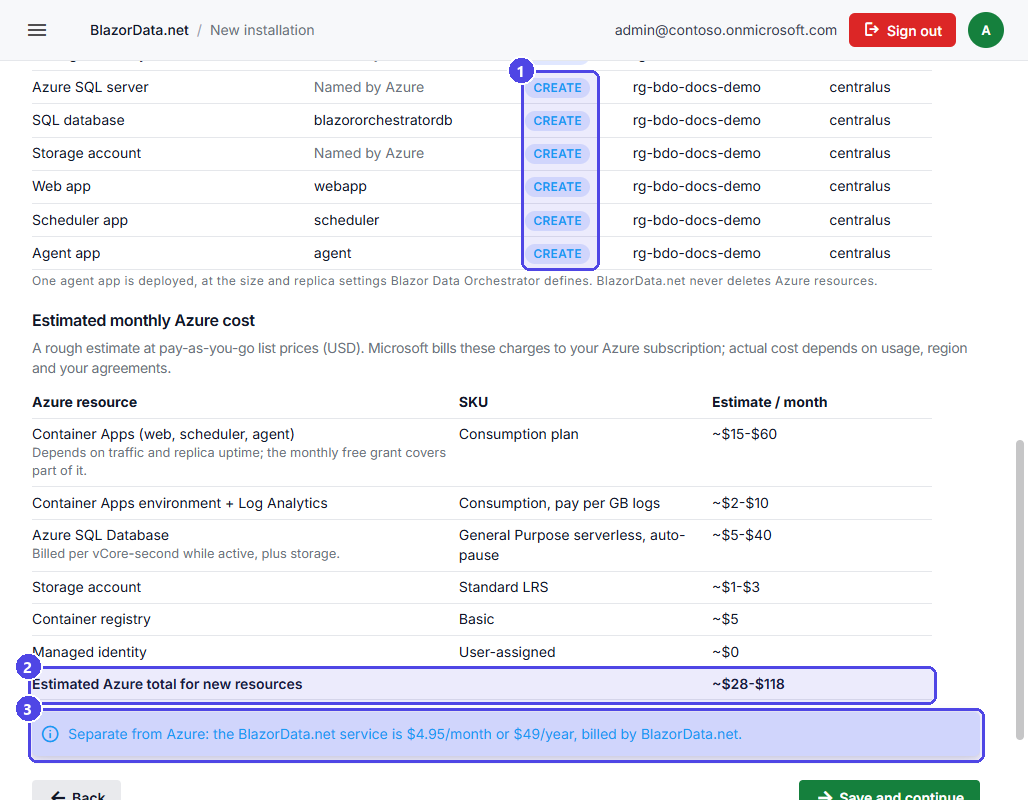
The review shows what will be created or reused, with an estimate of the monthly Azure cost. Grant the deployer access to the resource group and click Deploy.
Watch The Deployment
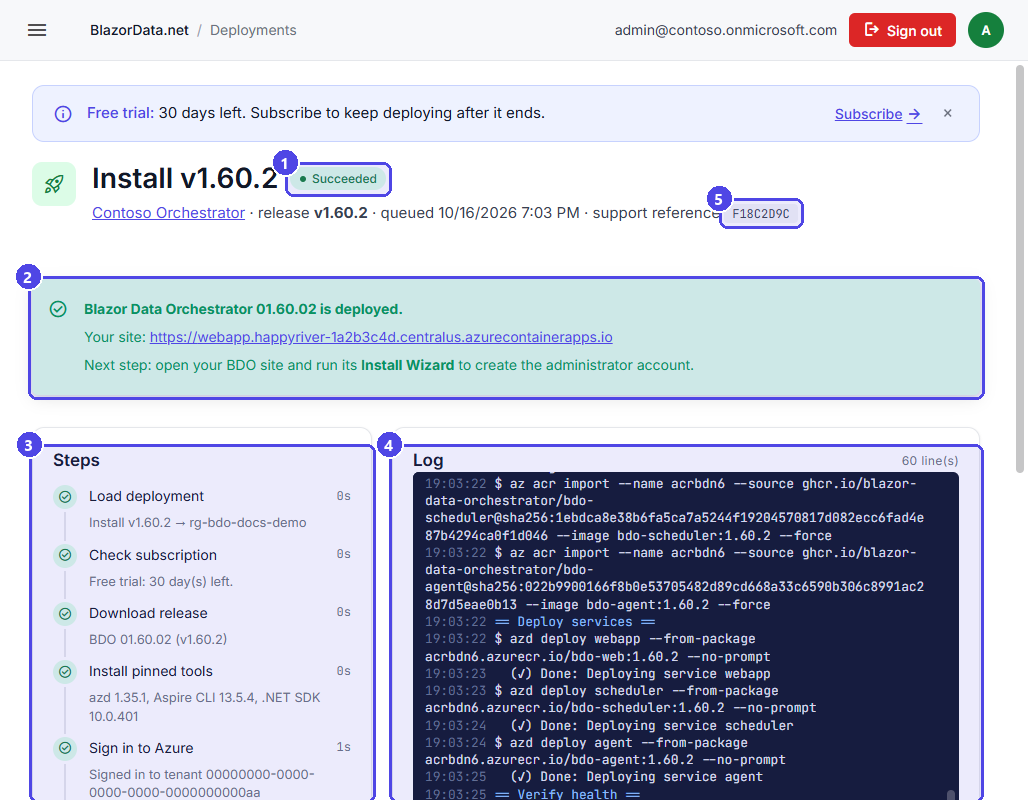
Every step shows live, with the full log and secrets removed. The deployment runs on BlazorData.net's servers, so you can close the page and come back. When it finishes, you get the address of your new site: open it and run the Blazor Data Orchestrator Install Wizard to create the administrator account.
One-Click Updates
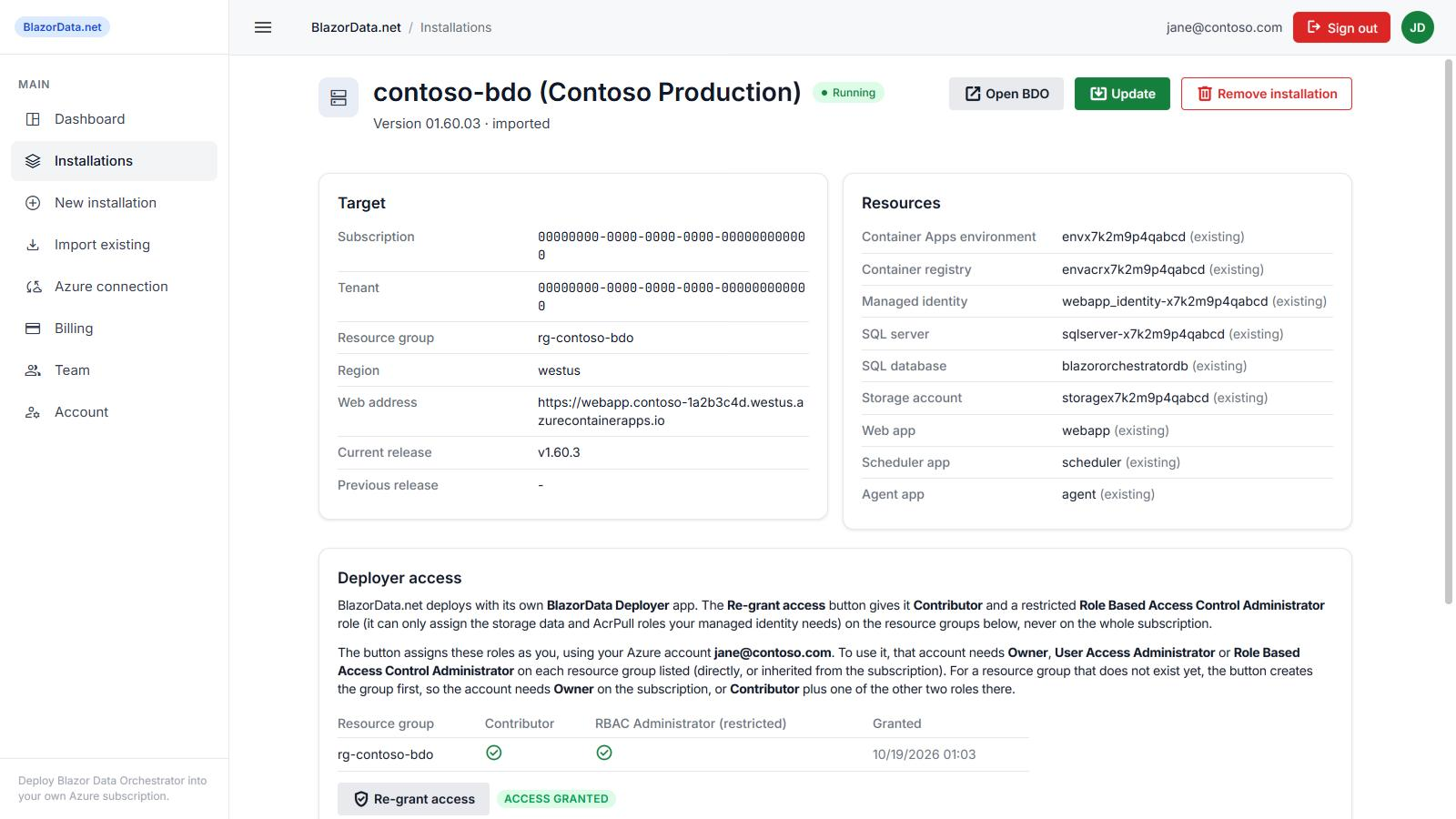
Each installation shows where it runs and every resource it uses. Already deployed Blazor Data Orchestrator yourself with azd up? Import it, and update it from here.
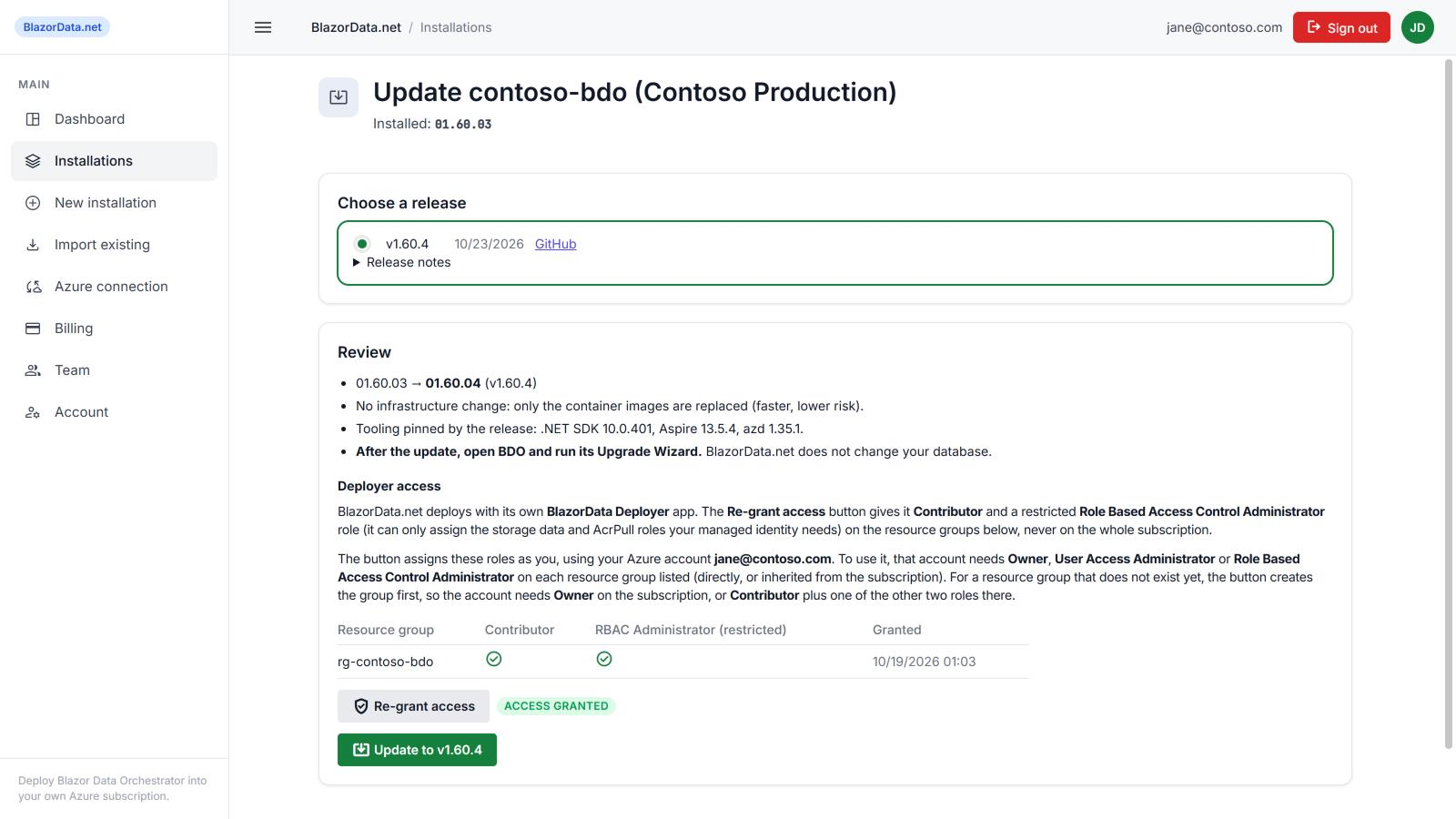
When a newer release is approved, click Update. Most releases only replace the container images, so an update takes about five minutes. Afterwards, open your site and run its Upgrade Wizard.
Pricing
After the 30-day free trial, BlazorData.net is $4.95 a month or $49 a year per team, with unlimited installations and team members. Azure resources run in your own subscription and are billed to you by Microsoft.