11/3/2026 M. Washington (Admin)
A Walk-Thru of Knowledge Graph Builder, the Blazor WebAssembly App That Runs Entirely In Your Browser
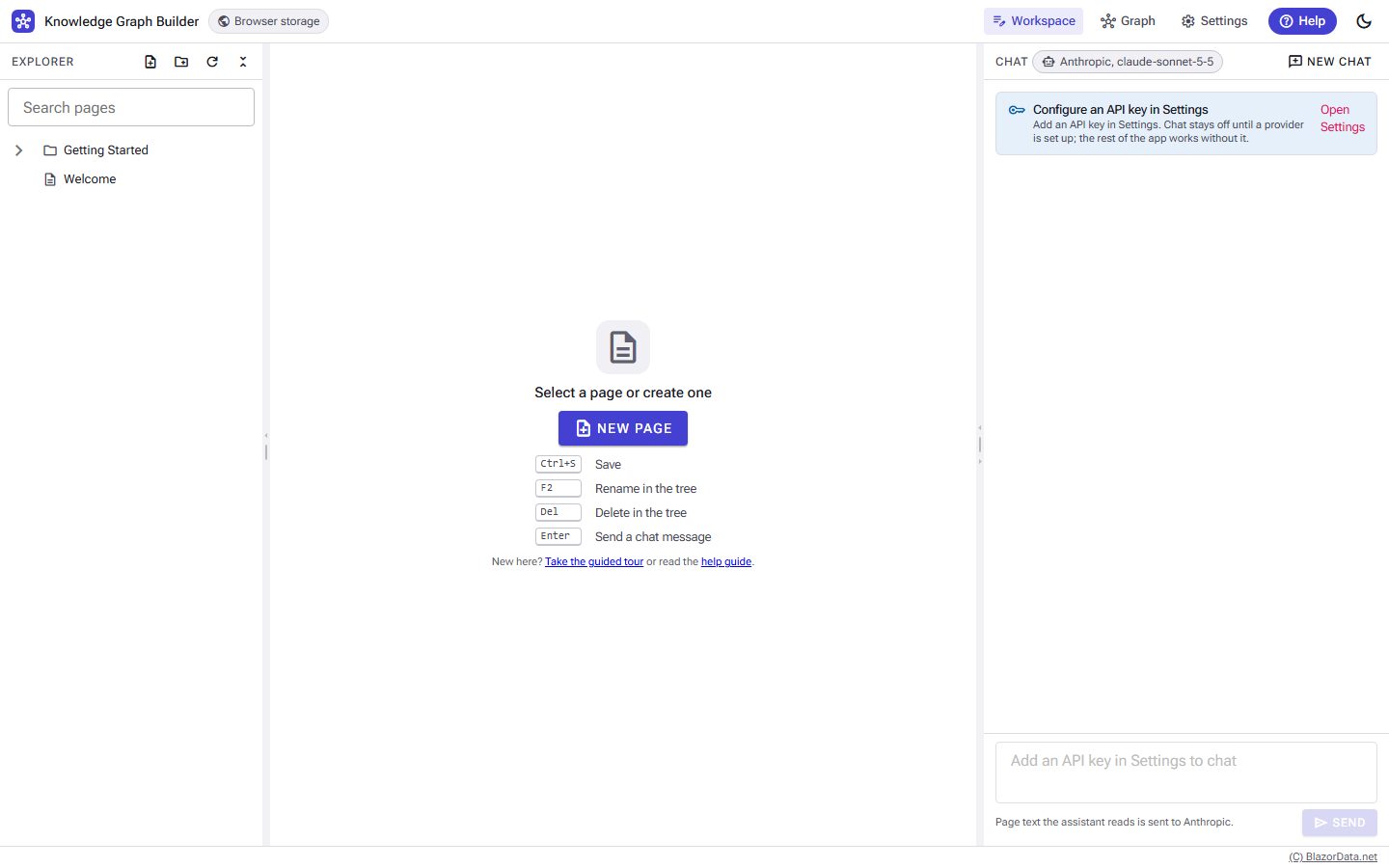
Knowledge Graph Builder is a workbench for a knowledge graph made of Markdown pages: a folder and page explorer, a Markdown editor with a Links panel (outgoing links, backlinks, unresolved links), and a chat that answers from the graph with [[citations]] and proposes page changes that you approve from a diff.
Try it live in your browser: BlazorKnowledgeGraphBuilder.azurewebsites.net — no install needed.
Watch the video walk-thru: Knowledge Graph Builder on YouTube
This post is only about the WebAssembly app. It is the standalone Blazor WebAssembly project, published as static files, with no server. Your pages and settings are kept in your browser's local storage, and the chat uses your own API key, sent straight from your browser to the LLM provider.
The Projects
The solution has a shared Razor Class Library and two independent apps that use it:
| Project | What it is |
|---|---|
KnowledgeGraphBuilder.Shared |
Razor Class Library with all the UI and logic: storage, graph, Markdown, chat engine, LLM clients |
KnowledgeGraphBuilder |
.NET MAUI Blazor Hybrid app. Windows is the supported target. |
KnowledgeGraphBuilder.Web |
Standalone Blazor WebAssembly app, published as static files. No server. |
KnowledgeGraphBuilder.Tests |
xUnit tests for Shared |
KnowledgeGraphBuilder.AppHost |
Aspire AppHost for development only; it launches both apps |
The two apps don't share pages, settings or keys, and neither needs Aspire at runtime.
To run the browser app from the repository (dev server at http://localhost:5022):
dotnet run --project KnowledgeGraphBuilder.Web
How The Browser App Is Wired Up
Everything the app needs is registered in one file. The working tree lives in the .NET in-memory file system and is written through to localStorage, so the same store, graph and chat code runs in the browser as on the desktop:
var builder = WebAssemblyHostBuilder.CreateDefault(args);
builder.RootComponents.Add<Routes>("#app");
builder.RootComponents.Add<HeadOutlet>("head::after");

// The working tree lives in the .NET in-memory file system and is written through to localStorage (D13, D16).
var documents = Environment.GetFolderPath(Environment.SpecialFolder.MyDocuments);
var root = Path.Combine(string.IsNullOrEmpty(documents) ? "/home/web_user/Documents" : documents, "KnowledgeGraphBuilder");
var options = new KnowledgeStoreOptions(root);

builder.Services.AddRadzenComponents();
builder.Services.AddBlazoredLocalStorageAsSingleton();
builder.Services.AddSingleton(_ => new HttpClient());
builder.Services.AddSingleton<IHostCapabilities>(new BrowserHostCapabilities(root));
builder.Services.AddSingleton<IKeyValueStore, LocalStorageKeyValueStore>();
builder.Services.AddSingleton<ISettingsStore, BrowserSettingsStore>();
builder.Services.AddSingleton<PersistingKnowledgeStore>();
builder.Services.AddSingleton<IKnowledgeStore>(sp => sp.GetRequiredService<PersistingKnowledgeStore>());
builder.Services.AddKnowledgeGraphShared(options);
builder.Services.AddSingleton<IBackupService, ZipBackupService>();
builder.Services.AddSingleton<StorageEventBridge>();

var host = builder.Build();

var store = host.Services.GetRequiredService<PersistingKnowledgeStore>();
await store.HydrateAsync();
await KnowledgeSeeder.SeedIfEmptyAsync(store);
await host.Services.GetRequiredService<StorageEventBridge>().StartAsync();

await host.RunAsync();
Three lines are worth pointing out. HydrateAsync reads the pages back out of localStorage on startup. SeedIfEmptyAsync writes four pages the first time you ever open the app: Welcome.md and three pages under Getting Started. And the StorageEventBridge listens for storage events, so an edit made in another tab is detected when you save.
Where Your Data And Key Live
In the browser app there is nowhere else for anything to go:
| Browser app | |
|---|---|
| Pages | Browser localStorage: one kgb:v1:page:<path> key per page plus kgb:v1:index |
| Settings | localStorage key kgb:v1:settings |
| API key | kgb:v1:settings, unencrypted |
| Deletes | Permanent (the confirmation offers Export first) |
The API key deserves the warning it gets in the README: any script or extension with access to the page can read it. Use a key with a spending limit, and use Clear key on shared computers.
Settings
The Settings page is a centered stack of cards: Knowledge root, AI provider, Graph and Appearance. On the browser host the knowledge root shows only the folder name, because there is no real folder to pick.
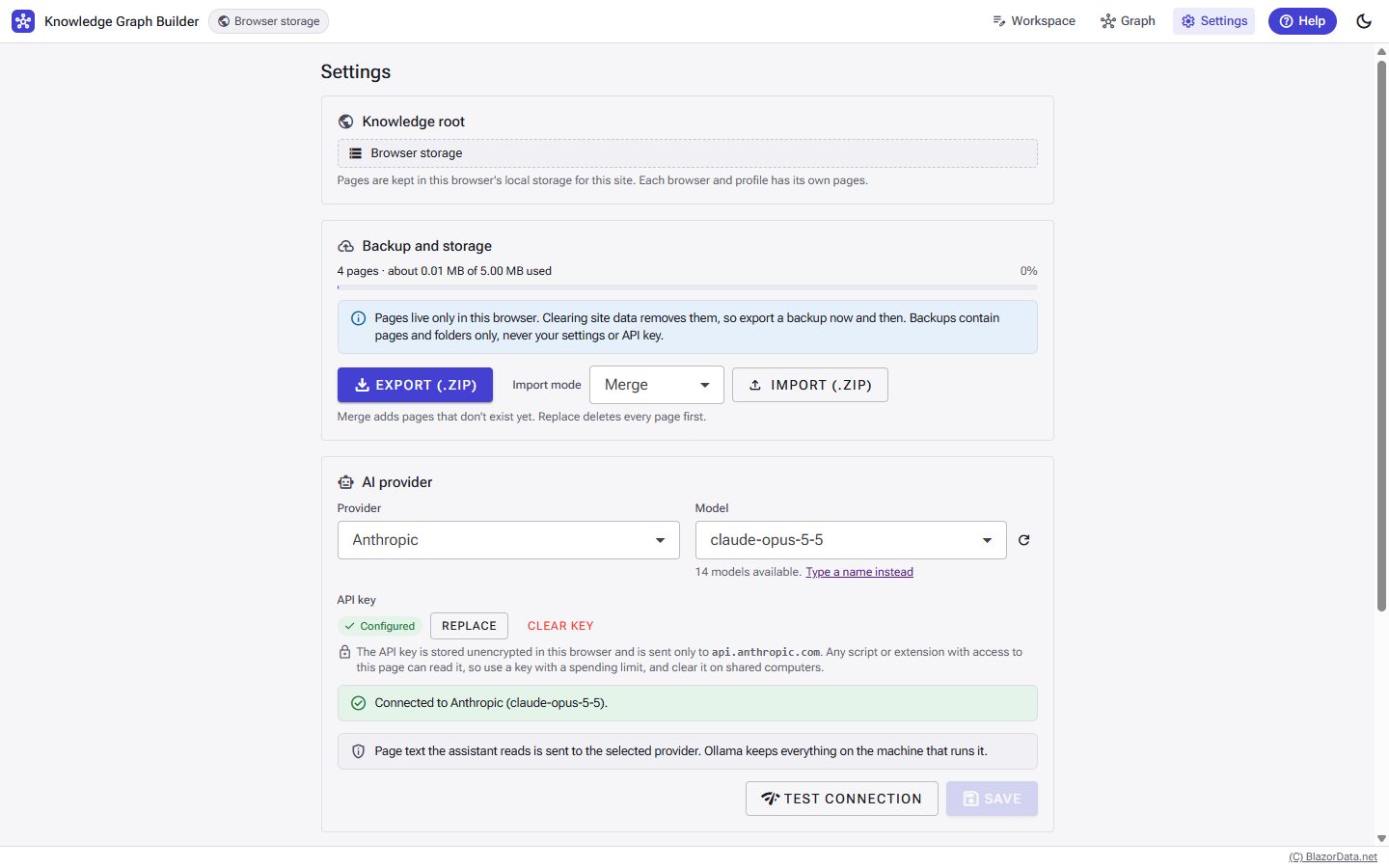
The Graph card shows the graph statistics and a Rebuild button with progress, and Appearance switches between the light and dark themes.
Entering Your API Key
This is the one piece of setup the app can't do for you. Open Settings, choose a provider and model, enter the key, and click Test connection. Calls go straight from the browser to the provider; there is no proxy.
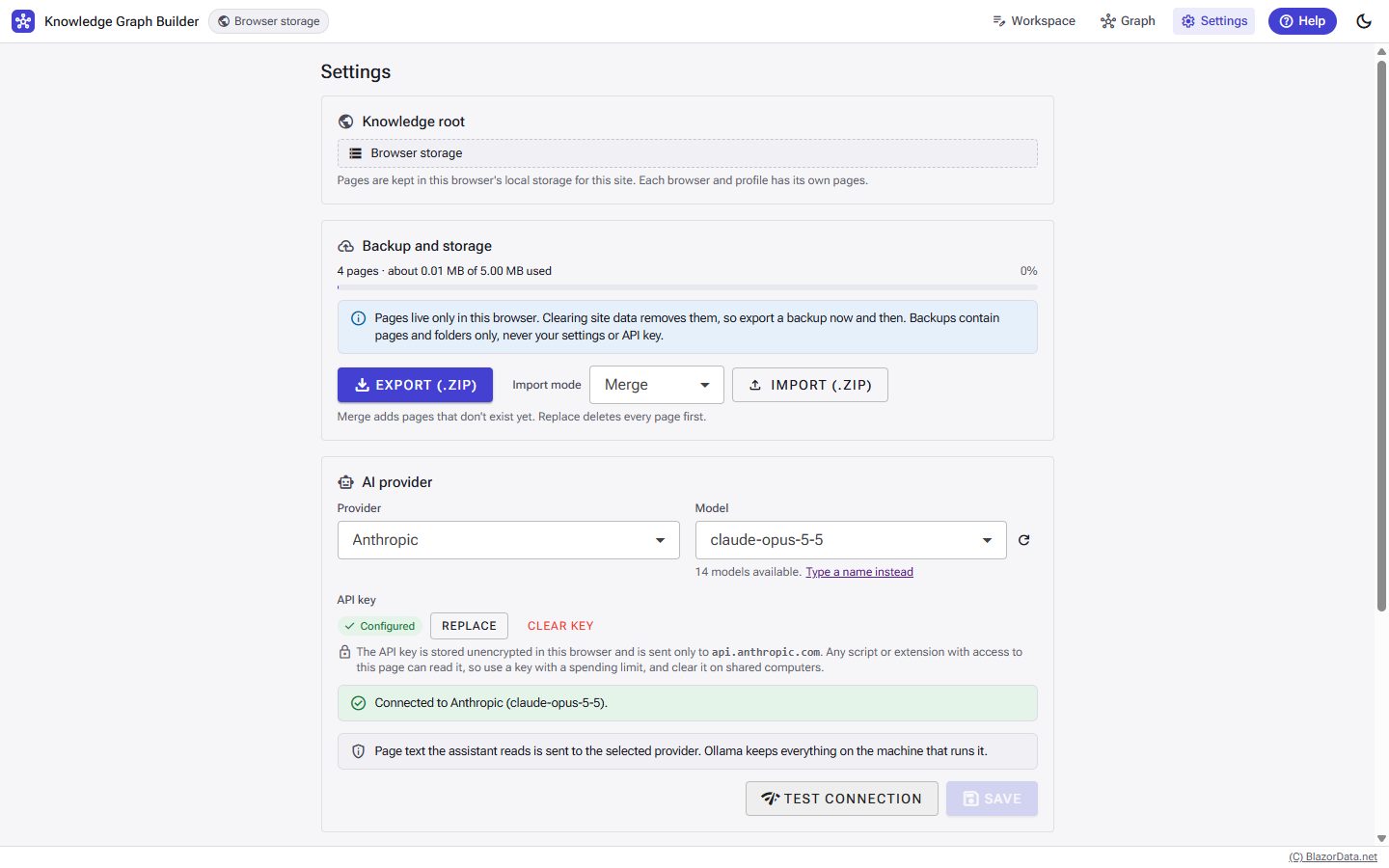
Once the key is saved it is never shown again: the field reads Configured or Not set, with a Replace button.
| Provider | Notes |
|---|---|
Anthropic (default, claude-sonnet-5-5) |
Built-in client. In the browser it sends the anthropic-dangerous-direct-browser-access CORS header. |
| OpenAI | Uses the OpenAI SDK. |
| Azure OpenAI | Needs the endpoint (https://<resource>.openai.azure.com/) and the deployment name as the model. The resource's CORS settings must allow the browser app's origin. |
| Ollama | Needs the endpoint, for example http://localhost:11434/. For the browser app, the Ollama host must allow its origin: set OLLAMA_ORIGINS (for example OLLAMA_ORIGINS=http://localhost:5022) and restart Ollama. |
| Fake | Debug builds only. A scripted client for demos without a key. |
Until a key is set, the chat composer is disabled and shows an inline card linking to Settings. Everything else in the app works without it.
Backup And Storage
localStorage holds roughly 5 MB per site, so the browser app shows you exactly where you stand.
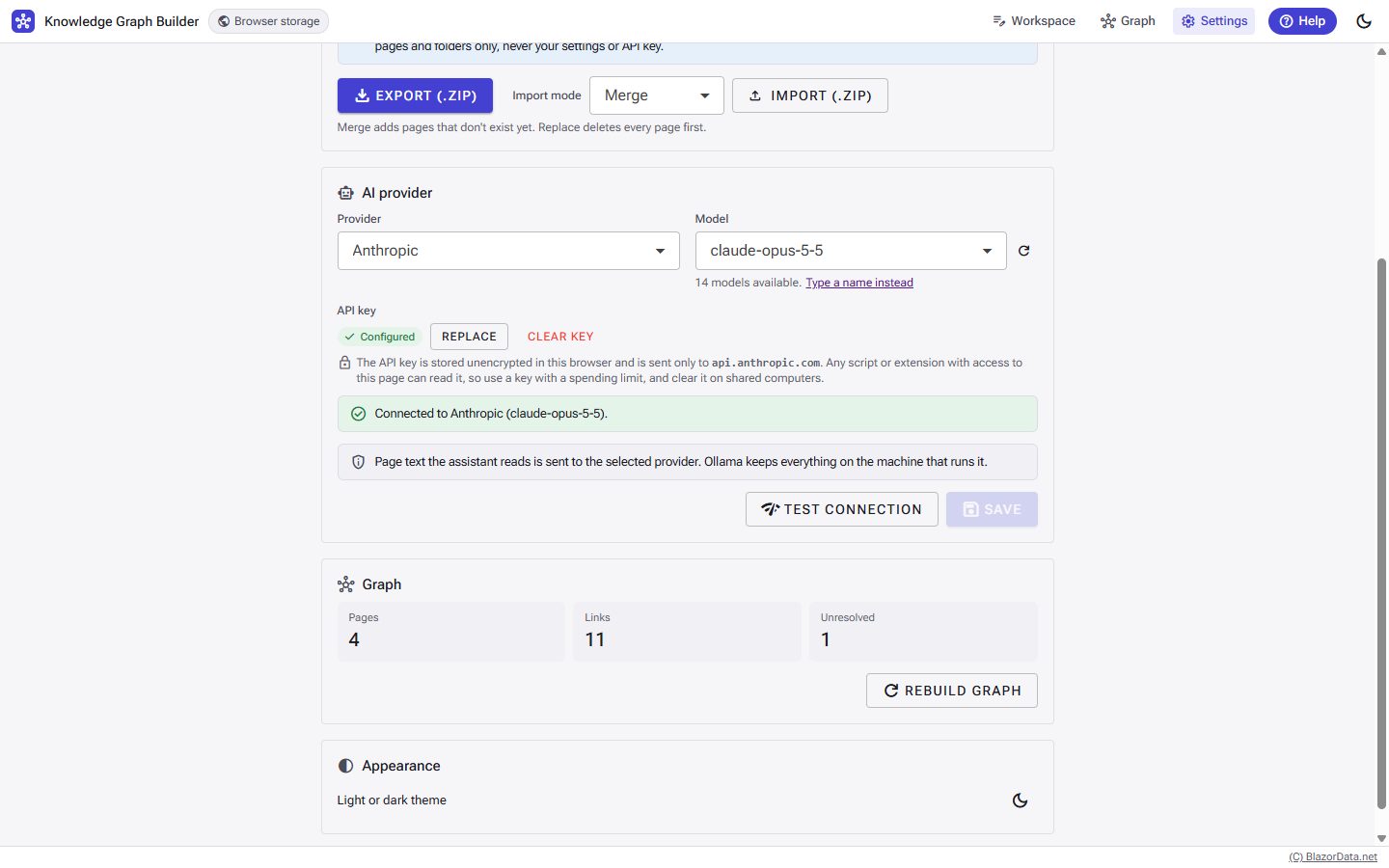
The card warns at 80%. When a save would go over the quota, the save fails, the change is rolled back and nothing is lost.
Clearing site data removes every page, so export backups. Export (.zip) downloads knowledge-graph-<date>.zip with pages and folders only — never settings and never the API key. Import (.zip) accepts up to 10 MB; Merge adds pages that don't exist yet, Replace deletes every page first. Entries that aren't valid .md paths are rejected.
The Workspace
The Workspace is the main screen: a splitter with three panes — Explorer, Editor and Chat.
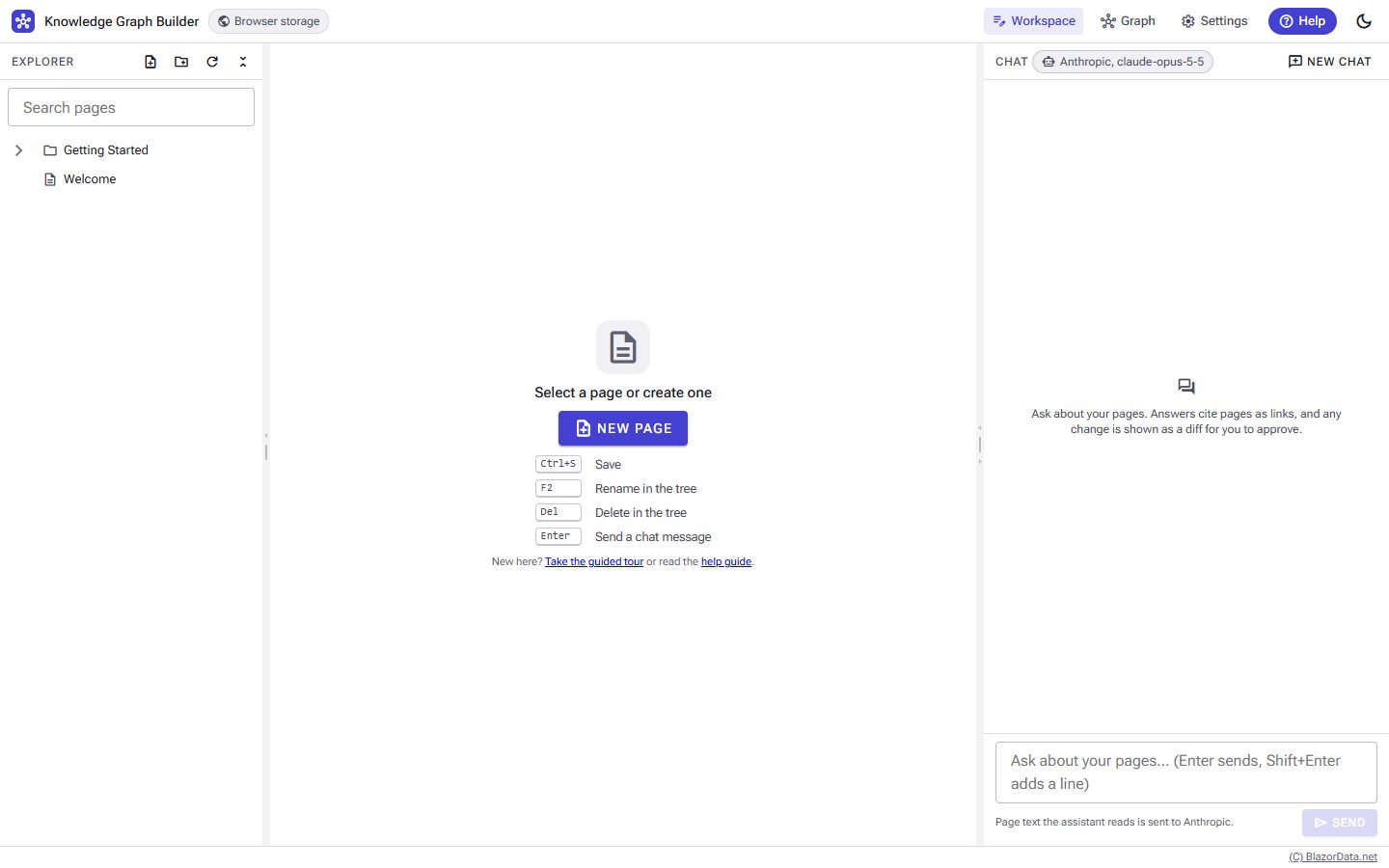
The Explorer is a lazy-loading tree with a search box, a context menu (Open · New page here · New folder here · Rename · Move to… · Delete) and HTML5 drag and drop. Dropping a folder into itself or one of its own descendants is refused with a reason. Search debounces at 200 ms and replaces the tree with title, path and a short highlighted snippet.
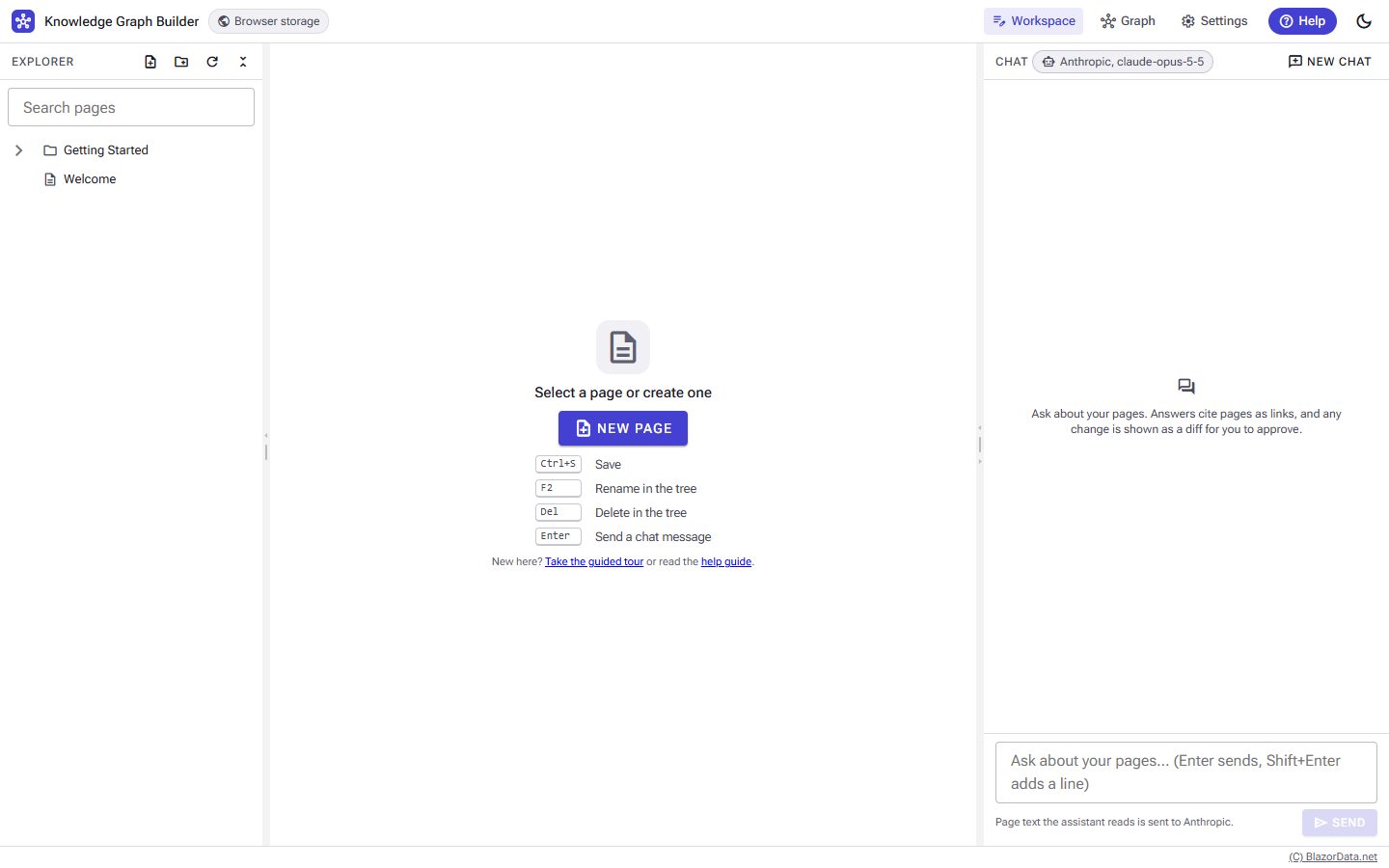
With nothing open, the editor shows its empty state. Open a page and the header appears with the title, breadcrumb, Save / Revert and the Design | Source | Preview select bar:
- Design is the Radzen Markdown editor.
- Source edits the Markdown text directly.
- Preview renders the page with clickable links; an unresolved link opens the New page dialog prefilled.
Front-matter is edited in the Properties box and never passes through the Markdown editor. Below the body, the Links panel shows outgoing links, backlinks and unresolved links with badge counts.
Keyboard: Ctrl+S saves, F2 renames and Delete deletes in the tree, Enter sends a chat message (Shift+Enter adds a line), Esc stops a streaming reply.
Chat, Citations And Approvals
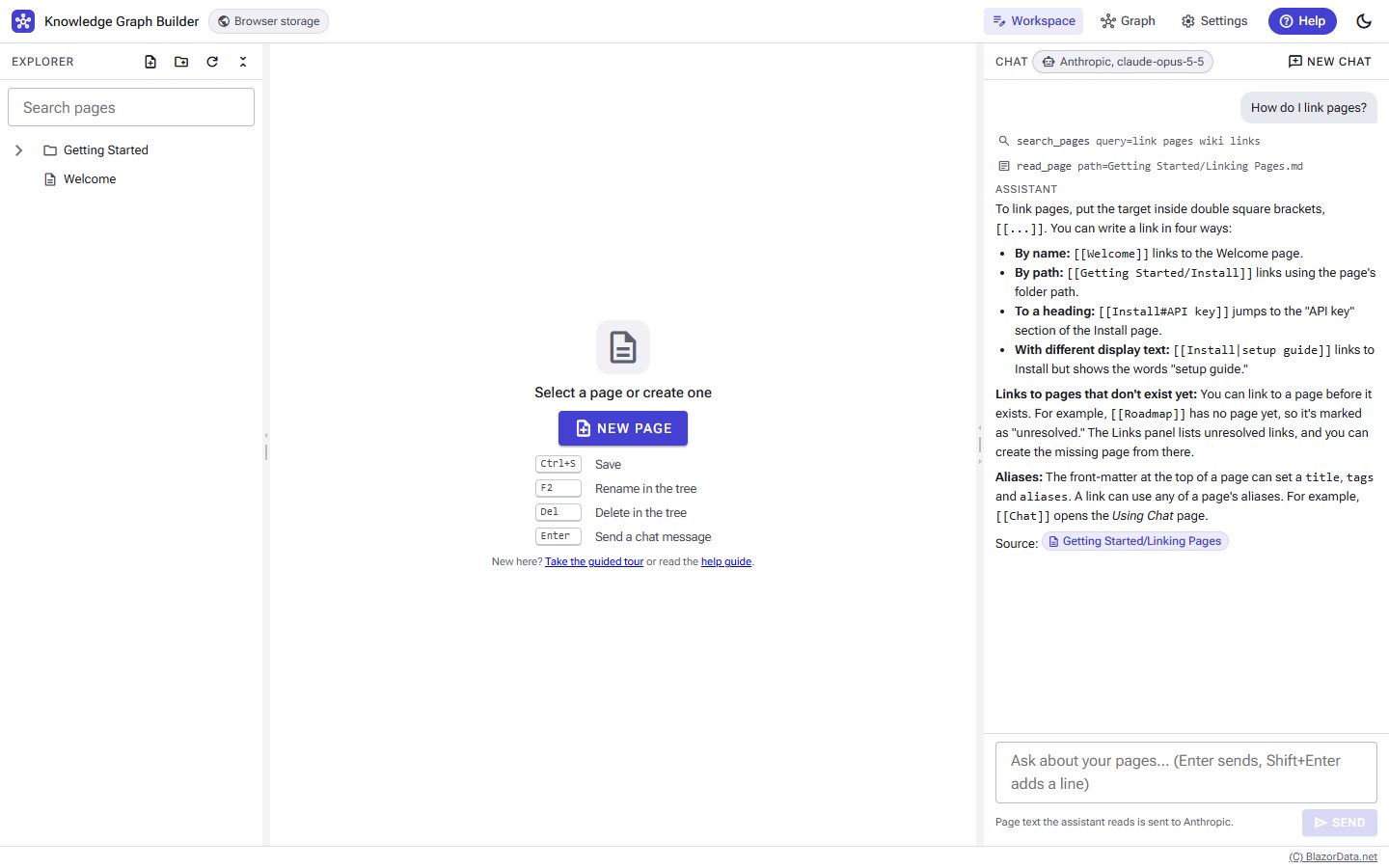
The chat answers from your pages. Tool calls are shown as rows in the transcript as they happen (search, read, list), and the answer links back to the pages it used as [[citations]].
When the model calls a write tool, the stream pauses and one approval card appears per change. The card header shows the action badge (Create page / Update page / Create folder), the path, a state badge and a full-screen button; the body is a unified diff with a sign column, folded runs of unchanged lines and a "Show all" link on long new pages. The footer says it plainly: Nothing is written until you apply.
Cards move through Pending, Approved, Applied, Rejected, Not applied, Cancelled and Superseded, each with an icon and a word — never color alone. If a page changed after the proposal was made, the apply fails cleanly:
Not applied: the page changed after this was proposed.
Not applied: a page with this name already exists.
Not applied: browser storage is full. Export a backup and delete pages you don't need.
With two or more open cards a sticky bar appears with "N of M decided", a progress bar, Reject all and Apply all. After an apply, the tree refreshes without moving your selection and the chat adds a Pages changed note that links to each page.
Page text the assistant reads is sent to the selected provider. The assistant can't delete, rename or move pages — only create and update, and only after you click Apply.
The Graph
The Graph page is the payoff for all that linking: every page is a node, and every resolved [[wiki link]] is an edge.
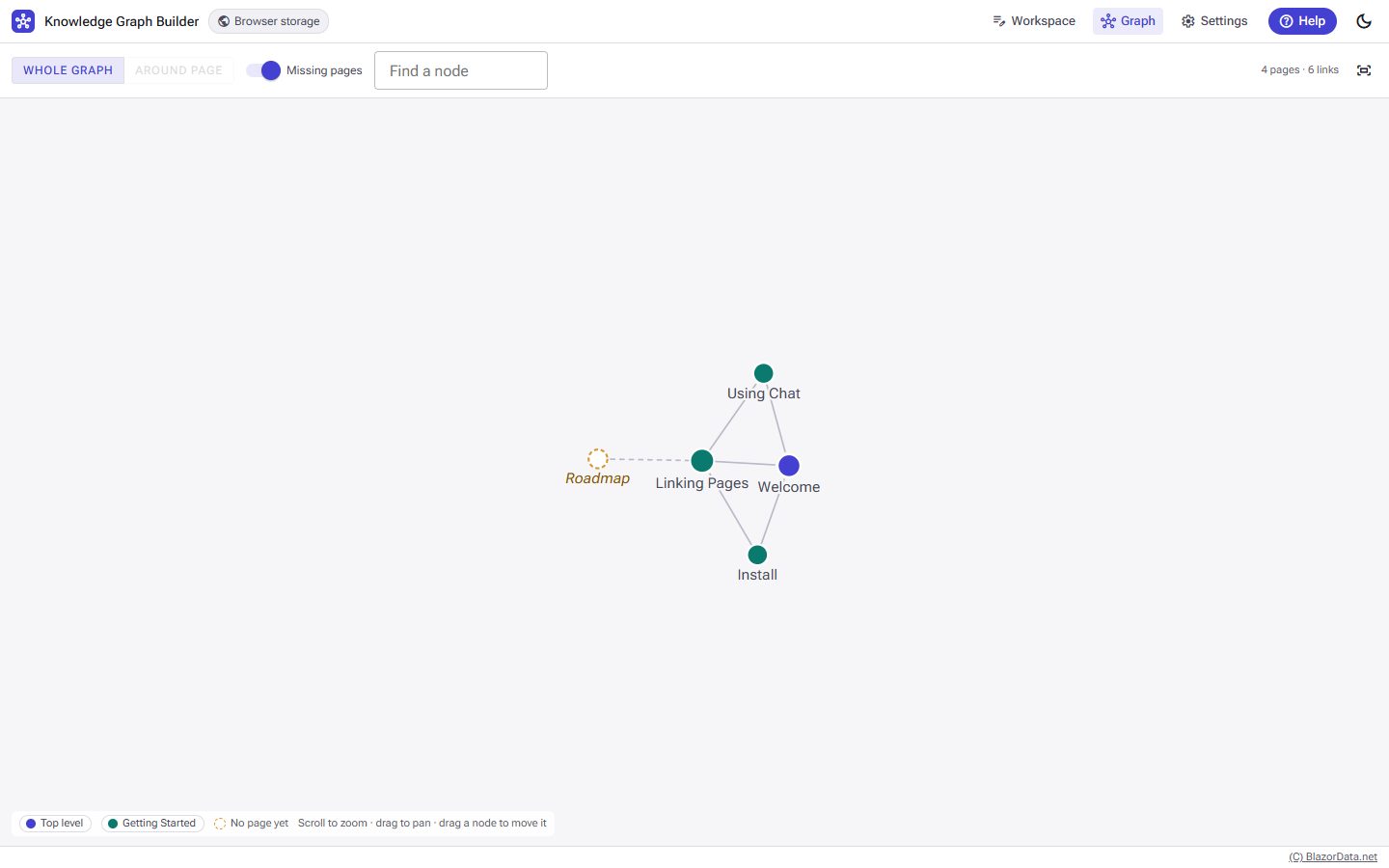
The graph is built from the same index the Links panel and the chat's search tool use, so it stays in step with your edits. If it ever looks stale, Settings → Graph → Rebuild re-scans every page.
Publishing It Yourself
There is no server to deploy — just static files:
dotnet publish KnowledgeGraphBuilder.Web -c Release
The static site is in KnowledgeGraphBuilder.Web/bin/Release/net10.0/publish/wwwroot. Any static host works if it falls back to index.html for unknown paths (for example npx serve -s). To host under a sub-path, change <base href="/"> in index.html to that path, such as /kgb/.
Links
- Knowledge Graph Builder, live in your browser
- Video walk-thru on YouTube
- Design plan: Docs/KnowledgeGraphBuilder-Plan.md
- UI mockups and the design system notes are in
Docs/designin the repository